
Private work notes, personal journals, draft emails, source code, and confidential documents do not always belong in a cloud chatbot. Local AI offers another option: download a model to your Windows PC and perform inference—the process of generating an answer from that model—on the computer itself.
A modern Windows computer can run a useful local AI assistant without an NPU or dedicated GPU. CPU-only inference is possible, although it is slower. For most ordinary laptops with 16 GB RAM, a 3B–4B 4-bit model is the safest starting point: choose LM Studio for the easiest graphical experience, Ollama for simple commands and local APIs, or Microsoft Foundry Local when you are developing an application around Microsoft-optimized local inference.
A “local ChatGPT alternative” means a ChatGPT-style interface powered by an open or openly distributed model. It is not a downloadable copy of OpenAI’s ChatGPT service. The tradeoff is important: local AI provides greater privacy, offline availability, and predictable cost, but small local models do not match the latest frontier cloud systems for difficult reasoning, coding, current knowledge, or broad multimodal work.
The comparison is especially timely because Microsoft announced the general availability of the Foundry Local runtime and SDK on April 9, 2026. It runs without a cloud dependency or per-token inference charge after setup, although Microsoft still documents the interactive Foundry Local CLI as a preview.
Last verified: July 2026. Hardware requirements, model catalogs, package sizes, and application interfaces can change.
Quick answer: You can run AI locally on Windows without an NPU and even without a dedicated GPU. On a typical 16 GB laptop, start with Qwen3 4B, Phi-4-mini, Gemma 3 4B, or Llama 3.2 3B in a 4-bit format. LM Studio is the easiest private-chat GUI; Ollama is the strongest simple terminal/API choice; Foundry Local is primarily a runtime and SDK for application developers.
Performance guidance in this article is a conservative estimate, not a guarantee. Results vary with the CPU generation, memory bandwidth, GPU, drivers, model, quantization, context length, and offload settings.
Table of contents
The quick answer: what hardware do you actually need?
- 8 GB RAM: possible, but limited to very small 0.6B–1.7B models and short contexts.
- 16 GB RAM: the practical minimum for a pleasant beginner experience; begin with a 3B–4B Q4 model.
- 32 GB RAM: comfortable for many 7B–14B quantized models, depending on the GPU and context.
- Dedicated GPU: optional but highly useful for speed and larger models.
- NPU: optional and platform-specific.
- Storage: allow several gigabytes for each model and potentially tens of gigabytes for a collection.
LM Studio officially recommends at least 16 GB RAM and 4 GB of dedicated VRAM, the memory attached to a graphics processor, on Windows. That GPU recommendation is not a hard requirement: LM Studio can turn GPU offload off and use the CPU plus system RAM.
More memory gives Windows, the local AI application, and the model room to coexist. It also reduces the risk of Windows moving data to the much slower page file on disk. You do not need to buy an “AI PC” just to find out whether local AI is useful to you.
Do you need an NPU or dedicated GPU?
The CPU is the universal fallback. Ollama and LM Studio can generate text using CPU cores and normal RAM, so a dedicated graphics card is optional. Larger models may generate slowly, especially on older mobile processors, but basic compatibility does not depend on a GPU.
A GPU performs many calculations in parallel and is currently the most broadly useful accelerator for local large language models. A dedicated GPU has its own VRAM, while an integrated GPU shares system RAM. Supported integrated graphics can still help, but they compete with Windows and the model for the same memory pool.
An NPU, or neural processing unit, is a power-efficient AI accelerator included in some newer PCs. It helps only when the runtime provides a compatible execution path and a model optimized for that hardware. An NPU is not a general prerequisite for a local LLM on Windows.
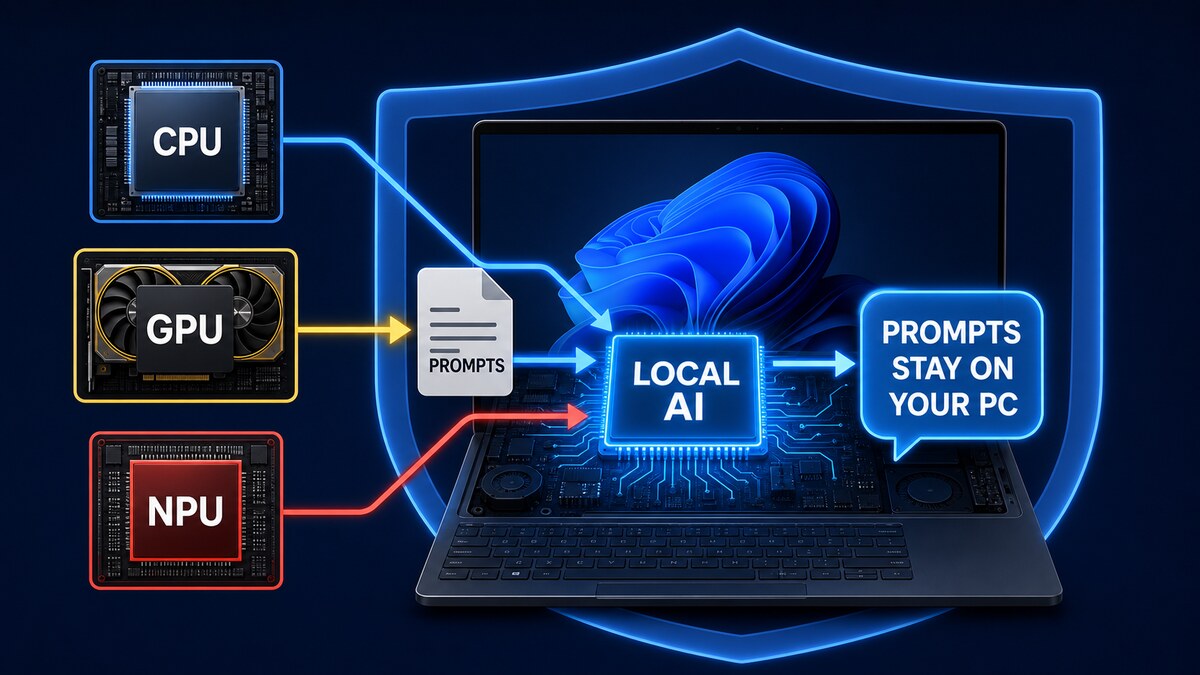
Do not buy an NPU-equipped laptop solely to try local AI. A capable GPU and enough memory currently provide broader compatibility across local LLM tools.
Foundry Local detects available hardware and can select GPU, NPU, or CPU execution providers for supported model variants. There is an important Windows-specific nuance: Microsoft’s current quickstart requires Windows 11 24H2 and a DirectX 12-capable integrated or discrete GPU for its WinML walkthrough. Integrated graphics count; this does not mean that a dedicated GPU is required.
RAM and VRAM requirements explained
A model’s parameter count—3B means roughly three billion adjustable values—gives a rough indication of its size and capability. The model weights are those learned values stored in the downloaded file. Bigger is not automatically better on a laptop, because a model that does not fit comfortably may become frustratingly slow.
Quantization stores the weights with fewer bits. A 4-bit model, commonly labeled Q4 or Q4_K_M, uses much less memory than a higher-precision version in exchange for a modest quality tradeoff. Q4_K_M is a sensible first choice when LM Studio offers several GGUF variants.
The model file size is not the total runtime memory requirement. The application also needs memory for Windows, runtime overhead, and the context window—the tokens from your prompt and conversation that the model can consider. The associated KV cache grows as context increases. That is why loading a 5.2 GB file with exactly 6 GB free is unreliable.
| Windows hardware | Sensible starting model size | Examples | Expected experience |
|---|---|---|---|
| 8 GB RAM, no dedicated GPU | 0.6B–1.7B Q4 | Qwen3 0.6B/1.7B, Gemma 3 1B, Llama 3.2 1B | Basic rewriting and short summaries; limited reasoning; keep context short |
| 16 GB RAM, no dedicated GPU | 3B–4B Q4 | Qwen3 4B, Phi-4-mini 3.8B, Gemma 3 4B, Llama 3.2 3B | Useful private chat and writing; CPU generation may be noticeably slower |
| 16 GB RAM plus 4–6 GB VRAM | 3B–8B Q4 | Qwen3 4B or 8B, Gemma 3 4B | Fast 4B use; 7B/8B may need partial GPU offload and modest context |
| 32 GB RAM plus 8 GB VRAM | 7B–12B Q4 | Qwen3 8B, Gemma 3 12B | Strong general local experience; larger context still increases memory use |
| 32 GB RAM plus 12 GB VRAM | 12B–14B Q4 | Gemma 3 12B, Qwen3 14B, Phi-4 14B | Better reasoning and writing; not a frontier-cloud equivalent |
| 64 GB RAM plus 16–24 GB VRAM | 20B–32B Q4 | Qwen3 30B/32B and similar | Workstation-class local AI with high power, storage, and cooling demands |
For scale, current Ollama packages are approximately 2.5 GB for Qwen3 4B, 5.2 GB for Qwen3 8B, 9.3 GB for Qwen3 14B, 3.3 GB for Gemma 3 4B, 8.1 GB for Gemma 3 12B, 2.5 GB for Phi-4-mini 3.8B, and 2.0 GB for Llama 3.2 3B. These are download sizes, not universal RAM figures.
A model advertising a 128K or 256K context does not mean an ordinary laptop can use the maximum comfortably. Start at about 4K–8K tokens on a low-memory system and increase only after checking resource use. Ollama itself currently defaults to 4K context below 24 GiB VRAM and allocates more on higher-VRAM systems; increasing context requires more memory.
Ollama vs LM Studio vs Foundry Local
| Feature | Ollama | LM Studio | Microsoft Foundry Local |
|---|---|---|---|
| Best for | Developers, scripts, terminal users, and local APIs | Beginners wanting a polished graphical chat app and model browser | Developers embedding optimized local AI into applications |
| Main interface | CLI, local API, and desktop experience | Desktop GUI, CLI, and local OpenAI-compatible server | SDK/runtime; development CLI for catalog and testing |
| Windows support | Native Windows 10 22H2 or later | Windows x64 and ARM; AVX2 required on x64 | Windows 11 24H2 in the current Windows quickstart |
| Dedicated GPU required | No | No; 4 GB VRAM recommended | No dedicated GPU; current Windows quickstart requires a DX12-capable integrated or discrete GPU |
| NPU required | No | No | No; supported variants can use NPU acceleration |
| Model ecosystem | Large Ollama library and imported models | Broad GGUF/Hugging Face ecosystem with quantization choices | Curated, hardware-optimized Foundry catalog |
| Local API | Yes, localhost port 11434 by default | Yes, commonly localhost port 1234 | SDK-native inference plus optional OpenAI-compatible endpoint |
| Offline after setup | Yes, for downloaded local models | Yes, for downloaded models and runtimes | Yes, after model/execution-provider download and caching |
| Biggest strength | Simple automation and integration | Easiest discovery and visual experimentation | Hardware-aware deployment and application integration |
| Main limitation | Model choice and tuning can feel technical | Many model/quantization choices can confuse beginners | Less consumer-oriented; catalog is curated rather than unrestricted |
Ollama: best for simple commands and local integrations
Ollama installs as a native Windows application, runs in the background, and exposes an API at http://localhost:11434. It supports Windows 10 22H2 or later. The application needs at least 4 GB of storage, while downloaded models can grow into tens or hundreds of gigabytes.
ollama run qwen3:4b
Smaller alternatives are easy to try:
ollama run phi4-mini
ollama run llama3.2:3b
ollama run gemma3:4b
Use an explicit local model tag when strict offline operation matters. Ollama also offers cloud models and web features; choosing one of those means the workflow is no longer fully local. Readers new to the shell can browse the site’s PowerShell and scripting guides before working from the terminal.
LM Studio: best for a beginner-friendly graphical interface
- Install LM Studio from its official site.
- Open the model discovery screen.
- Search for a 3B–4B instruction model.
- Choose a 4-bit quantization, preferably Q4 or Q4_K_M for the first attempt.
- Use the built-in memory estimate before loading.
- Load the model, keep context modest, and start a chat.
LM Studio can disable GPU offload and use CPU plus RAM. Its resource estimator considers context length, GPU settings, flash attention, and whether a model supports vision, so it is more informative than checking the download size alone.
After the models and runtimes have been downloaded, core chat, document chat, and local server inference can operate offline. Under normal local use, prompts and imported documents stay on the machine. Searching the catalog, downloading models or runtimes, and checking for updates still use the internet.
Foundry Local: best for Windows application developers
Foundry Local is not simply another consumer chatbot wrapper. It is Microsoft’s lightweight local AI runtime and SDK, with a curated catalog of optimized model variants, automatic hardware matching, in-process inference, and an optional OpenAI-compatible server. The core runtime and SDK became generally available on April 9, 2026; the companion CLI used for exploration remains documented as preview.
winget install Microsoft.FoundryLocal
foundry model list
foundry model run phi-4-mini
A model alias such as phi-4-mini lets Foundry Local choose a suitable hardware variant. The catalog currently includes families such as Phi, Qwen, DeepSeek, Mistral, Whisper, and GPT-OSS, but availability changes.
The current Windows development quickstart specifies Windows 11 24H2, a DirectX 12-capable integrated or discrete GPU, and .NET 9. Readers with older Windows laptops will usually find Ollama or LM Studio easier. Foundry Local becomes compelling when the goal is to embed and ship local inference inside a Windows or cross-platform application.
Which local models work on ordinary laptops?
| Model | Approximate packaged size | Good fit | Main caution |
|---|---|---|---|
| Qwen3 1.7B | 1.4 GB | 8 GB systems, quick rewriting, lightweight multilingual chat | Limited depth and reliability |
| Llama 3.2 3B | 2.0 GB | Summaries, rewriting, and general chat on 16 GB laptops | Older and smaller than stronger current models |
| Qwen3 4B | 2.5 GB | Best all-round starting point for many 16 GB laptops | Reasoning mode and very long context can slow it down |
| Phi-4-mini 3.8B | 2.5 GB | Reasoning, math, and compact Microsoft-oriented workflows | Small model still makes confident mistakes |
| Gemma 3 4B | 3.3 GB | Multilingual text and image-capable experiments | Vision adds memory and processing load |
| Qwen3 8B | 5.2 GB | Better quality on 16–32 GB systems, especially with GPU help | Tight on 16 GB when context and other apps use memory |
| Gemma 3 12B | 8.1 GB | Stronger writing and multimodal use on 32 GB systems | Much slower on CPU-only laptops |
Catalog availability and default quantizations change, so confirm the exact package before downloading. Do not choose a huge model merely because it technically loads. A smaller model that fits fully in memory and answers promptly is often more useful than a larger one that triggers disk paging or splits awkwardly between RAM and VRAM.
Privacy: when does local AI really stay local?
Local inference can keep prompts and generated text on-device, let you work without an internet connection, and avoid per-token cloud inference fees. This is valuable for private notes, draft correspondence, proprietary code, and documents you are not permitted to send to a third-party AI provider.
Offline privacy starts after the application, runtime, execution providers, and models have been downloaded. LM Studio’s official documentation says downloaded-model chat, document processing, and local server inference can run offline. Foundry Local downloads a model and sometimes an execution provider on first use, then caches them for on-device inference without an Azure subscription.
Local does not automatically mean secure. A cloud-tagged model, web search, remote MCP server, plugin, telemetry setting, or API deliberately exposed to the LAN can move data beyond the local process. Malicious documents and third-party tools introduce their own risks even when the model weights remain on the PC.
Privacy checklist
- Download the application and model from the official source.
- Disconnect from the internet for a strict offline test.
- Avoid cloud-tagged models, web search, and remote connectors.
- Review telemetry and update settings.
- Keep the API bound to localhost unless LAN access is intentional.
- Protect chat histories and model folders with normal Windows account and disk security.
- Treat documents, plugins, and MCP tools as separate trust decisions.
Local AI vs cloud AI: privacy, speed, and quality
| Factor | Local AI | Cloud AI |
|---|---|---|
| Privacy | Strongest when fully offline and correctly configured | Data leaves the device, subject to provider and account policies |
| First-token latency | No internet round trip; can feel immediate | Depends on network and service load |
| Generation speed | Hardware-dependent; CPU may be slow | Usually fast on provider-grade accelerators |
| Answer quality | Good for focused tasks, but small models have limits | Frontier models generally lead on hard reasoning, coding, and multimodal work |
| Current information | Static knowledge unless local tools or RAG are added | May include web search and continuously updated services |
| Cost | No per-token fee after hardware, electricity, and storage | Subscription or API fees may apply |
| Availability | Works offline | Requires connectivity and service availability |
| Setup | Requires model selection and memory tuning | Usually immediate through a website or app |
Local removes network latency, but that does not guarantee faster output. A small model on a recent GPU can feel extremely responsive; CPU-only generation on an older laptop may be slower than reading speed. Loading can take time even when later responses are quick, and longer prompts increase prompt-processing time and memory use.
Models in the 3B–4B range are often useful for rewriting, summarizing, brainstorming, extracting fields, and private note search. Models from 7B–14B usually improve coherence and reasoning but require more memory. Frontier cloud models remain preferable for difficult research, complex multi-step reasoning, advanced coding, current web information, and demanding multimodal tasks.
Every model can hallucinate—produce plausible but false information. Verify sensitive factual output regardless of where the model runs.
Which tool should you choose?
- Choose LM Studio for the easiest graphical private-chat experience and visual model management.
- Choose Ollama for a one-command setup, scripts, API integration, containers or automation, and connections to another local UI.
- Choose Foundry Local when building an application, selecting curated hardware-optimized variants, or following an SDK-native path from local development to packaged software.
For a typical 16 GB Windows laptop, begin with LM Studio and Qwen3 4B Q4 if you want a GUI, or Ollama with
ollama run qwen3:4bif you are comfortable in PowerShell. Treat Foundry Local as the most developer-oriented option rather than the default personal chatbot.
A safe first test on any 16 GB Windows laptop
- Close memory-heavy applications.
- Install LM Studio or Ollama from the official site.
- Download Qwen3 4B or Phi-4-mini.
- Begin with a 4K–8K context window.
- Ask the same three prompts: summarize a paragraph, rewrite an email, and explain a technical concept.
- Watch Windows Task Manager for RAM, GPU memory, and disk paging.
- If the computer becomes unresponsive, step down to a 1.7B–3B model instead of forcing a larger one.
- Disconnect Wi-Fi and repeat one chat to verify true offline operation.
This test answers the practical question better than a synthetic benchmark: does the assistant handle your real work at a speed you find comfortable, without exhausting memory? If yes, you already have useful local AI hardware.
Frequently asked questions
Can I run a ChatGPT alternative locally with only 8 GB RAM?
Yes, but use a small 0.6B–1.7B quantized model and a short context. It can help with simple rewriting or extraction, but it is not suitable for advanced reasoning.
Do I need a Copilot+ PC or NPU?
No. Ollama and LM Studio run on ordinary x64 Windows PCs, while Foundry Local can use supported NPUs but does not require one. Current Foundry Local Windows guidance does require a DirectX 12-capable integrated or discrete GPU.
Is local AI completely free?
Many applications and models have no per-token charge, but licensing varies by model. Hardware, electricity, storage, and commercial-use license conditions still matter.
Does local AI work without internet?
Yes, after the application, runtime, and model files are downloaded. Model search, downloads, updates, web search, and remote tools still need a connection.
Is LM Studio or Ollama easier?
LM Studio is generally easier for someone who wants a GUI and visual model management. Ollama is often simpler for developers who prefer a terminal and local API.
Is Foundry Local better than Ollama?
Not universally. Foundry Local is strongest as an application runtime with curated, hardware-optimized variants; Ollama is usually more straightforward for general experimentation and integrations.
Can a local model match ChatGPT quality?
A small local model can match or exceed cloud AI for a narrow, repeatable task. It will not consistently match the latest frontier cloud systems across difficult reasoning, coding, multimodal understanding, and current information.
Official sources and further reading
- Microsoft Foundry Blog: Foundry Local is now Generally Available
- Microsoft Learn: Get started with Foundry Local on Windows
- Microsoft Learn: What is Foundry Local?
- Microsoft Learn: Use the Foundry Local CLI (preview)
- Ollama documentation: Windows
- Ollama documentation: Context length
- Ollama documentation: Hardware support
- Ollama model library: Qwen3
- Ollama model library: Gemma 3
- Ollama model library: Phi-4-mini
- Ollama model library: Llama 3.2
- LM Studio documentation: System requirements
- LM Studio documentation: Load a model and estimate resources
- LM Studio documentation: Offline operation
The detail that Ollama defaults to 4K context below 24 GiB of VRAM matters even more once readers move from chat to agents. Hermes Agent, for example, asks for at least 64K tokens because the system prompt and tool definitions are sent on every request. In LM Studio the context length is set per model in the load settings, so it’s worth raising it there before connecting any agent to port 1234. I’m the author of a portable Windows desktop agent based on Hermes that connects to LM Studio without admin rights, though to be fair it’s meant for PCs with an 8 GB+ NVIDIA card, so it sits above the 16 GB laptop tier in your table: https://github.com/aivrar/portable-hermes-agent